<?xml version="1.0" encoding="utf-8"?><feed xmlns="http://www.w3.org/2005/Atom" xml:lang="en"><generator uri="https://jekyllrb.com/" version="4.4.1">Jekyll</generator><link href="https://vamsi193.github.io/feed.xml" rel="self" type="application/atom+xml" /><link href="https://vamsi193.github.io/" rel="alternate" type="text/html" hreflang="en" /><updated>2025-08-03T01:07:30-06:00</updated><id>https://vamsi193.github.io/feed.xml</id><title type="html">By Vamsi</title><subtitle>Tutorials and hands-on guides on Kubernetes, CI/CD, AWS, and GitOps.</subtitle><entry><title type="html">ContainerSSH - Launch containers on demand</title><link href="https://vamsi193.github.io/posts/containerssh_launch_containers_on_demand/" rel="alternate" type="text/html" title="ContainerSSH - Launch containers on demand" /><published>2025-08-02T01:05:00-06:00</published><updated>2025-08-03T01:07:08-06:00</updated><id>https://vamsi193.github.io/posts/containerssh_launch_containers_on_demand</id><content type="html" xml:base="https://vamsi193.github.io/posts/containerssh_launch_containers_on_demand/"><![CDATA[<p><span style="color:rgb(78, 191, 12);"><strong><a href="https://containerssh.io/v0.5/">ContainerSSH</a></strong></span> is a modern SSH server that starts a new container for every SSH connection. Instead of granting direct access to a host system, it dynamically spins up a container when a user logs in, providing a secure, clean, and resource efficient environment.</p>

<p>For every SSH connection, ContainerSSH automatically starts a fresh container, seamlessly drops the user into it, and removes the container when the session ends. There’s no need for system users, authentication and container configuration are handled dynamically via webhooks.</p>

<hr />
<h2 id="key-functionalities-of-containerssh">Key functionalities of ContainerSSH</h2>

<ul>
  <li>
    <p><span style="color:rgb(12, 131, 191);"><strong>Container-based SSH access: </strong></span> 
ContainerSSH launches a new, isolated container (in Kubernetes, Podman, or Docker) for each SSH session.</p>
  </li>
  <li>
    <p><span style="color:rgb(12, 131, 191);"><strong>Dynamic authentication and configuration:  </strong></span> 
ContainerSSH supports dynamic authentication and container configuration through webhooks, eliminating the need for system users and simplifying user management.</p>
  </li>
  <li>
    <p><span style="color:rgb(12, 131, 191);"><strong>Automatic container lifecycle management:  </strong></span>  The container is created upon connection and automatically removed when the user disconnects, ensuring resource efficiency and security.</p>
  </li>
  <li>
    <p><span style="color:rgb(12, 131, 191);"><strong>Customizable runtime behavior: </strong></span> You can configure the base image, command, environment variables, CPU/memory limits, volume mounts, and network settings per session or user.</p>
  </li>
  <li>
    <p><span style="color:rgb(12, 131, 191);"><strong>Built-in observability with Prometheus: </strong></span> ContainerSSH exposes metrics like session count, container startup time, and errors in Prometheus format, allowing easy integration with Grafana dashboards for monitoring and auditing.</p>
  </li>
</ul>

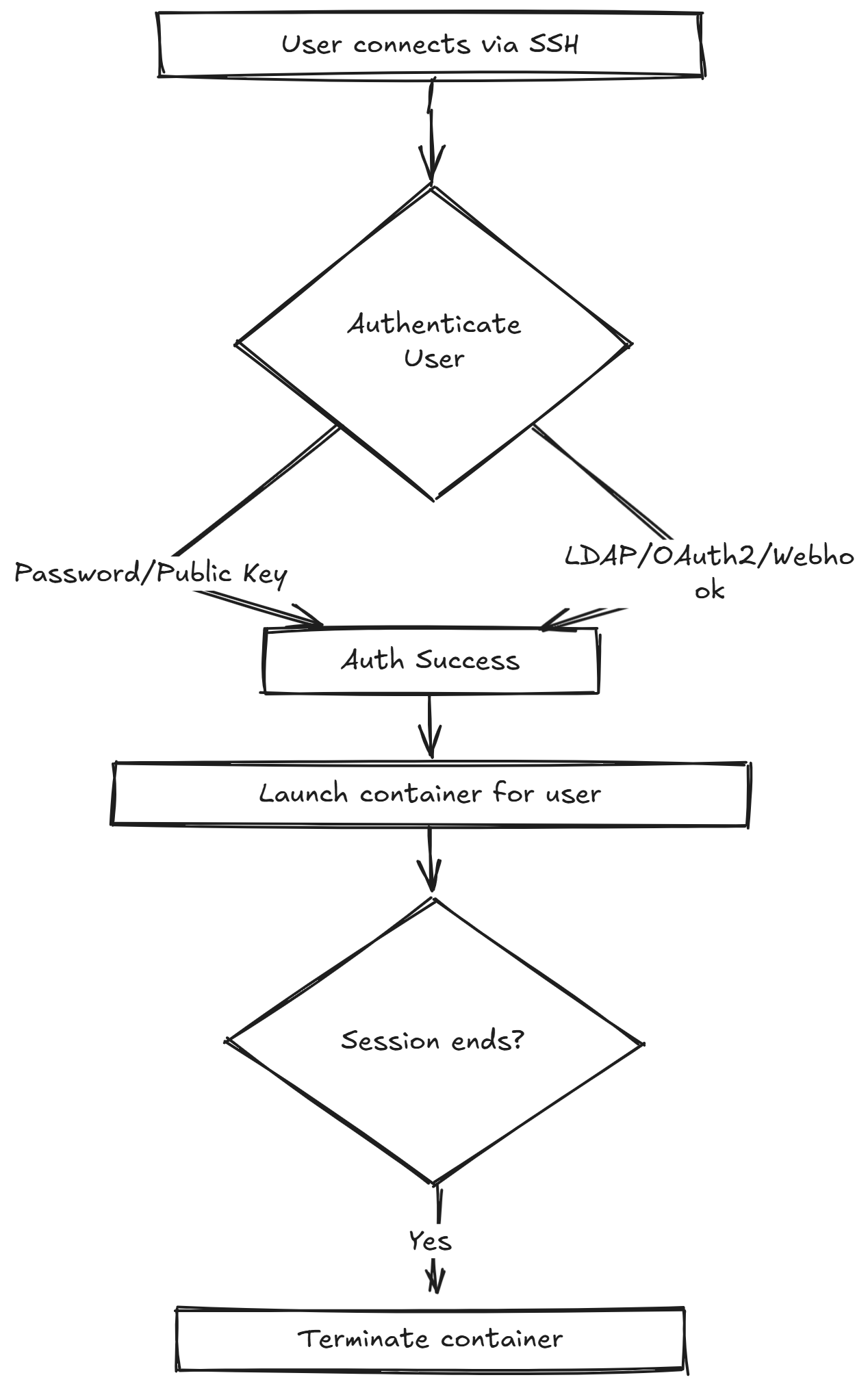
<h2 id="conatinerssh-flow-chart">ConatinerSSH flow chart</h2>

<div style="display: flex; justify-content: center; margin: 20px 0;">
  <div style="flex: 1;"></div>
  <div style="flex: 1; display: flex; flex-direction: column; align-items: center;">
    <a href="/images/post-4/post-4-image.png" class="popup img-link shimmer">
      <img src="/images/post-4/post-4-image.png" alt="ContainerSSH flow chart" style="width: 110%; max-width: 500px; border-radius: 8px;" loading="lazy" />
    </a>
  </div>
  <div style="flex: 1;"></div>
</div>

<div style="text-align: center; font-size: 0.9em; color: gray; margin-top: -20px;">
  <em>Figure: ContainerSSH flow chart</em>
</div>

<h2 id="step-by-step-walkthrough-on-implementation">Step-by-Step Walkthrough on implementation</h2>
<p>I’ll now walk you through a quick demo to show how ContainerSSH works in practice. We’ll set up a simple environment using <code class="language-plaintext highlighter-rouge">Docker Compose</code>.</p>

<ul>
  <li>Accepts any SSH connection</li>
  <li>Spins up a new container for each session</li>
  <li>Cleans up automatically when the session ends</li>
</ul>

<p>The demo runs ContainerSSH with Docker Compose, along with a dummy auth server that accepts any login.</p>

<p>When you SSH to localhost:2222, a new container is started just for that session.
After logout, the container is automatically removed showcasing secure, on-demand SSH access.</p>

<h2 id="prerequisites">Prerequisites</h2>
<p>To set this up, I already had:</p>

<p>Running Linux Server with docker service running.</p>

<p><strong>Step 1:</strong> Clone the ContainerSSH example repo</p>

<div class="language-bash highlighter-rouge"><div class="highlight"><pre class="highlight"><code><table class="rouge-table"><tbody><tr><td class="rouge-gutter gl"><pre class="lineno">1
2
3
4
5
6
7
8
9
10
11
12
13
14
15
16
17
</pre></td><td class="rouge-code"><pre><span class="o">[</span>root@ip-172-31-16-220 ContainerSSH]# git clone https://github.com/ContainerSSH/examples.git
Cloning into <span class="s1">'examples'</span>...
remote: Enumerating objects: 147, <span class="k">done</span><span class="nb">.</span>
remote: Counting objects: 100% <span class="o">(</span>16/16<span class="o">)</span>, <span class="k">done</span><span class="nb">.</span>
remote: Compressing objects: 100% <span class="o">(</span>15/15<span class="o">)</span>, <span class="k">done</span><span class="nb">.</span>
remote: Total 147 <span class="o">(</span>delta 6<span class="o">)</span>, reused 1 <span class="o">(</span>delta 1<span class="o">)</span>, pack-reused 131 <span class="o">(</span>from 1<span class="o">)</span>
Receiving objects: 100% <span class="o">(</span>147/147<span class="o">)</span>, 39.73 KiB | 2.48 MiB/s, <span class="k">done</span><span class="nb">.</span>
Resolving deltas: 100% <span class="o">(</span>69/69<span class="o">)</span>, <span class="k">done</span><span class="nb">.</span>

<span class="o">[</span>root@ip-172-31-16-220 ContainerSSH]# <span class="nb">cd </span>examples/quick-start/
<span class="o">[</span>root@ip-172-31-16-220 quick-start]# <span class="nb">ls</span> <span class="nt">-ltr</span>
total 24
<span class="nt">-rw-r--r--</span><span class="nb">.</span> 1 root root 5948 Aug  3 06:35 kubernetes.yaml
<span class="nt">-rwxr-xr-x</span><span class="nb">.</span> 1 root root  485 Aug  3 06:35 generate_keys.sh
<span class="nt">-rw-r--r--</span><span class="nb">.</span> 1 root root 1724 Aug  3 06:35 docker-compose.yaml
<span class="nt">-rw-r--r--</span><span class="nb">.</span> 1 root root  361 Aug  3 06:35 config.yaml
<span class="nt">-rw-r--r--</span><span class="nb">.</span> 1 root root 2517 Aug  3 06:35 README.md
</pre></td></tr></tbody></table></code></pre></div></div>

<p><strong>Step 2:</strong> Generate SSH keys for the container</p>
<div class="language-bash highlighter-rouge"><div class="highlight"><pre class="highlight"><code><table class="rouge-table"><tbody><tr><td class="rouge-gutter gl"><pre class="lineno">1
2
3
4
5
6
7
8
9
10
</pre></td><td class="rouge-code"><pre><span class="o">[</span>root@ip-172-31-16-220 quick-start]# sh generate_keys.sh
<span class="o">[</span>root@ip-172-31-16-220 quick-start]# <span class="nb">ls</span> <span class="nt">-ltr</span>
total 36
<span class="nt">-rw-r--r--</span><span class="nb">.</span> 1 root root  1724 Aug  3 06:35 docker-compose.yaml
<span class="nt">-rw-r--r--</span><span class="nb">.</span> 1 root root   361 Aug  3 06:35 config.yaml
<span class="nt">-rw-r--r--</span><span class="nb">.</span> 1 root root  2517 Aug  3 06:35 README.md
<span class="nt">-rwxr-xr-x</span><span class="nb">.</span> 1 root root   349 Aug  3 06:38 generate_keys.sh
<span class="nt">-rw-------</span><span class="nb">.</span> 1 root root  3422 Aug  3 06:38 ssh_host_rsa_key
<span class="nt">-rw-------</span><span class="nb">.</span> 1 root root   452 Aug  3 06:38 ssh_host_ed25519_key
<span class="nt">-rw-r--r--</span><span class="nb">.</span> 1 root root 11072 Aug  3 06:38 kubernetes.yaml
</pre></td></tr></tbody></table></code></pre></div></div>

<p><strong>Step 3:</strong> Review config files</p>

<p>docker-compose.yaml</p>
<div class="language-bash highlighter-rouge"><div class="highlight"><pre class="highlight"><code><table class="rouge-table"><tbody><tr><td class="rouge-gutter gl"><pre class="lineno">1
2
3
4
5
6
7
8
9
10
11
12
13
14
15
16
17
18
19
20
21
22
23
24
25
26
27
28
</pre></td><td class="rouge-code"><pre><span class="o">[</span>root@ip-172-31-16-220 quick-start]# <span class="nb">grep</span> <span class="nt">-v</span> <span class="s1">'^\s*#'</span> docker-compose.yaml
<span class="nt">---</span>
services:
  containerssh:
    image: containerssh/containerssh:0.4.1
    ports:
      - 127.0.0.1:2222:2222

    volumes:

    - <span class="nb">type</span>: <span class="nb">bind
      source</span>: ./config.yaml
      target: /etc/containerssh/config.yaml

    - <span class="nb">type</span>: <span class="nb">bind
      source</span>: ./ssh_host_rsa_key
      target: /var/secrets/ssh_host_rsa_key
    - <span class="nb">type</span>: <span class="nb">bind
      source</span>: ./ssh_host_ed25519_key
      target: /var/secrets/ssh_host_ed25519_key

    - <span class="nb">type</span>: <span class="nb">bind
      source</span>: /var/run/docker.sock
      target: /var/run/docker.sock

    user: <span class="s2">"root"</span>
  authconfig:
    image: containerssh/containerssh-test-authconfig:0.4.1
</pre></td></tr></tbody></table></code></pre></div></div>

<p>config.yaml</p>
<div class="language-bash highlighter-rouge"><div class="highlight"><pre class="highlight"><code><table class="rouge-table"><tbody><tr><td class="rouge-gutter gl"><pre class="lineno">1
2
3
4
5
6
7
8
9
10
11
12
13
14
15
16
17
</pre></td><td class="rouge-code"><pre><span class="o">[</span>root@ip-172-31-16-220 quick-start]# <span class="nb">grep</span> <span class="nt">-v</span> <span class="s1">'^\s*#'</span>  config.yaml
<span class="nt">---</span>
ssh:
  banner: <span class="s2">"Welcome to ContainerSSH!</span><span class="se">\n</span><span class="s2">"</span>
  hostkeys:
    - /var/secrets/ssh_host_rsa_key
    - /var/secrets/ssh_host_ed25519_key
log:
  level: debug
auth:
  url: <span class="s2">"http://authconfig:8080"</span>
configserver:
  url: <span class="s2">"http://authconfig:8080/config"</span>
backend: docker
docker:
  connection:
    host: unix:///var/run/docker.sock
</pre></td></tr></tbody></table></code></pre></div></div>

<p><strong>Step 4:</strong> Launch ContainerSSH</p>

<div class="language-bash highlighter-rouge"><div class="highlight"><pre class="highlight"><code><table class="rouge-table"><tbody><tr><td class="rouge-gutter gl"><pre class="lineno">1
2
3
4
5
6
7
8
</pre></td><td class="rouge-code"><pre><span class="o">[</span>root@ip-172-31-16-220 quick-start]# docker-compose up <span class="nt">-d</span>
<span class="o">[</span>+] Running 2/2
 ✔ Container quick-start-containerssh-1  Started                                                                                                        0.7s
 ✔ Container quick-start-authconfig-1    Running                                                                                                        0.0s
<span class="o">[</span>root@ip-172-31-16-220 quick-start]# docker ps
CONTAINER ID   IMAGE                                             COMMAND                  CREATED          STATUS          PORTS                                NAMES
342ddfb03825   containerssh/containerssh:0.4.1                   <span class="s2">"/containerssh --con…"</span>   22 seconds ago   Up 21 seconds   127.0.0.1:2222-&gt;2222/tcp, 9100/tcp   quick-start-containerssh-1
7420939e09bf   containerssh/containerssh-test-authconfig:0.4.1   <span class="s2">"/containerssh-testa…"</span>   6 hours ago      Up 6 hours      8080/tcp                             quick-start-authconfig-1
</pre></td></tr></tbody></table></code></pre></div></div>
<p><strong>Step 5:</strong> Logging in</p>

<p>Initiate a ssh connection on the localhost</p>
<div class="language-bash highlighter-rouge"><div class="highlight"><pre class="highlight"><code><table class="rouge-table"><tbody><tr><td class="rouge-gutter gl"><pre class="lineno">1
2
3
4
5
6
7
8
9
</pre></td><td class="rouge-code"><pre><span class="o">[</span>root@ip-172-31-16-220 ~]# ssh foo@localhost <span class="nt">-p</span> 2222
The authenticity of host <span class="s1">'[localhost]:2222 ([127.0.0.1]:2222)'</span> can<span class="s1">'t be established.
ED25519 key fingerprint is SHA256:kt3d+1BHstt3nWAqxSsL0MYZM2BhAlxQA/ZXkccuyCI.
This key is not known by any other names
Are you sure you want to continue connecting (yes/no/[fingerprint])? yes
Warning: Permanently added '</span><span class="o">[</span>localhost]:2222<span class="s1">' (ED25519) to the list of known hosts.
Welcome to ContainerSSH!
foo@localhost'</span>s password:
root@96b9d75fbda0:/#
</pre></td></tr></tbody></table></code></pre></div></div>

<p>Now we could check a new docker container is started.</p>
<div class="language-bash highlighter-rouge"><div class="highlight"><pre class="highlight"><code><table class="rouge-table"><tbody><tr><td class="rouge-gutter gl"><pre class="lineno">1
2
3
4
5
</pre></td><td class="rouge-code"><pre><span class="o">[</span>root@ip-172-31-16-220 quick-start]# docker ps
CONTAINER ID   IMAGE                                             COMMAND                  CREATED              STATUS              PORTS                                NAMES
96b9d75fbda0   containerssh/containerssh-guest-image             <span class="s2">"/usr/bin/containers…"</span>   About a minute ago   Up About a minute                                        focused_wiles
342ddfb03825   containerssh/containerssh:0.4.1                   <span class="s2">"/containerssh --con…"</span>   4 minutes ago        Up 4 minutes        127.0.0.1:2222-&gt;2222/tcp, 9100/tcp   quick-start-containerssh-1
7420939e09bf   containerssh/containerssh-test-authconfig:0.4.1   <span class="s2">"/containerssh-testa…"</span>   6 hours ago          Up 6 hours          8080/tcp                             quick-start-authconfig-1
</pre></td></tr></tbody></table></code></pre></div></div>

<h2 id="summary">Summary</h2>

<p>This blog shows how easy it is to get started with ContainerSSH using Docker Compose. It gives you a hands-on at how on-demand, container-based SSH access works. Use cases include Developer Sandboxes, Training &amp; Workshops, Lightweight Demo Environments.</p>]]></content><author><name></name></author><category term="DevOps" /><category term="Kubernetes" /><category term="Docker" /><category term="containerSSH" /><category term="docker" /><category term="ssh" /><summary type="html"><![CDATA[ContainerSSH is a modern SSH server that starts a new container for every SSH connection. Instead of granting direct access to a host system, it dynamically spins up a container when a user logs in, providing a secure, clean, and resource efficient environment.]]></summary><media:thumbnail xmlns:media="http://search.yahoo.com/mrss/" url="https://vamsi193.github.io/images/post-4/post-4.png" /><media:content medium="image" url="https://vamsi193.github.io/images/post-4/post-4.png" xmlns:media="http://search.yahoo.com/mrss/" /></entry><entry><title type="html">Restricting Image Sources in Kubernetes with Harbor and Kyverno</title><link href="https://vamsi193.github.io/posts/restricting_image_sources_in_kubernetes_with_harbor_and_kyverno/" rel="alternate" type="text/html" title="Restricting Image Sources in Kubernetes with Harbor and Kyverno" /><published>2025-07-12T12:00:00-06:00</published><updated>2025-07-12T14:05:29-06:00</updated><id>https://vamsi193.github.io/posts/restricting_image_sources_in_kubernetes_with_harbor_and_kyverno</id><content type="html" xml:base="https://vamsi193.github.io/posts/restricting_image_sources_in_kubernetes_with_harbor_and_kyverno/"><![CDATA[<p>When deploying workloads to Kubernetes, it’s critical to control which container images are allowed into the environment. Pulling images from public or unverified registries introduces security risks such as unscanned vulnerabilities or untrusted third-party code.</p>

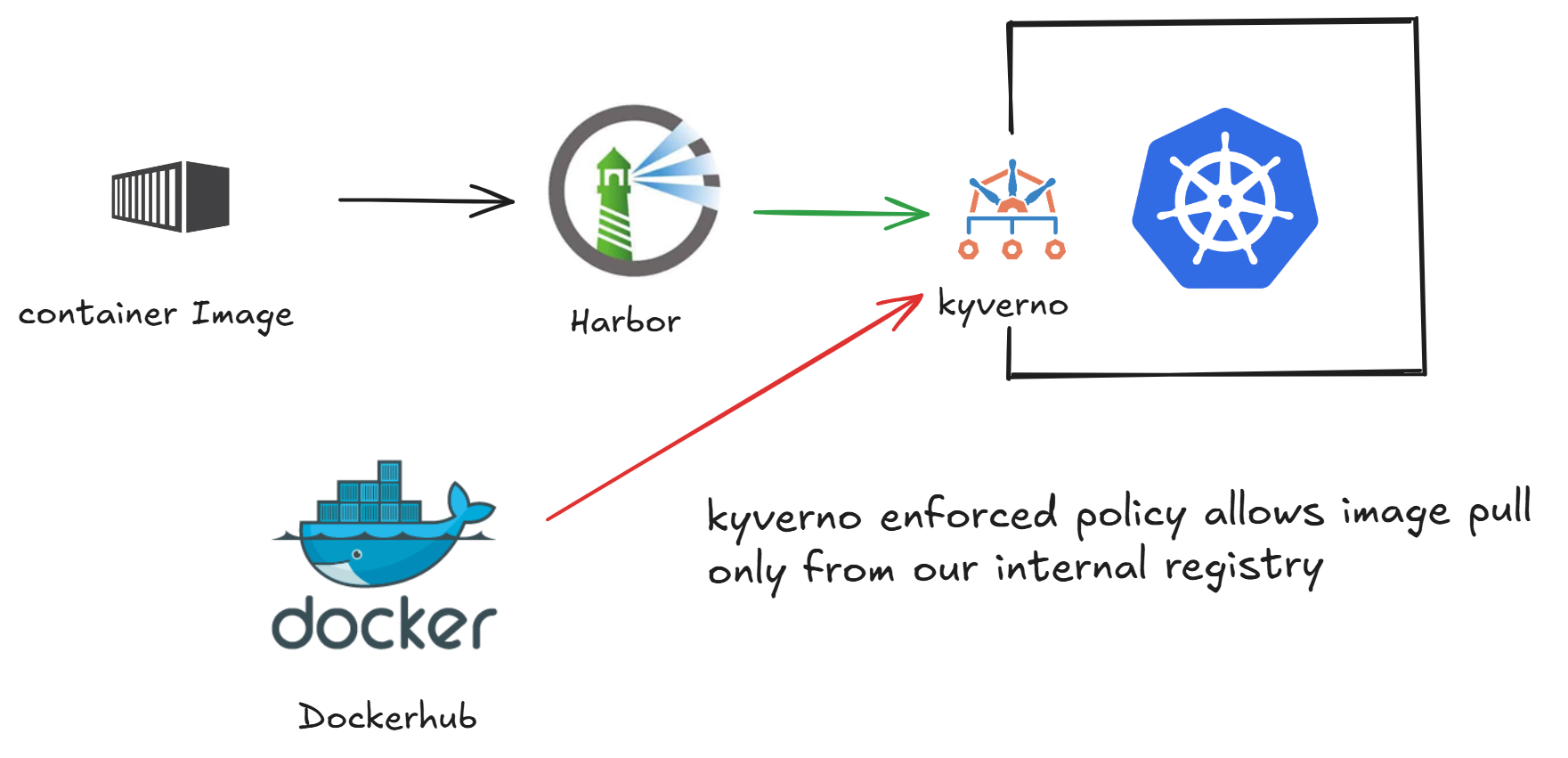
<p>We walk through how to <strong>restrict image pulls to an internal private registry (Harbor)</strong> using <strong>Kyverno</strong>, a Kubernetes-native policy engine.</p>

<div style="width: 100%; display: flex; justify-content: center; margin: 20px 0;">
  <div style="max-width: 1000px; width: 100%;">
    <a href="/images/post-3/post-3.png" class="popup img-link shimmer">
      <img src="/images/post-3/post-3.png" alt="Harbor project demo with nginx image" style="width: 100%; height: auto; display: block; border-radius: 8px;" loading="lazy" />
    </a>
    <div style="text-align: center; font-size: 1em; color: gray; margin-top: 8px;">
      <em>Figure: Enforcing image pull policy using Harbor and Kyverno in Kubernetes</em>
    </div>
  </div>
</div>

<hr />

<h3 id="prerequisites">Prerequisites</h3>

<p>To set this up, I already had:</p>

<ol>
  <li>Running Kubernetes cluster : <a href="https://www.docker.com/products/docker-desktop">KinD</a></li>
  <li>Kubernetes CLI: <a href="https://kubernetes.io/docs/tasks/tools/">kubectl</a></li>
  <li>HELM: <a href="https://helm.sh/docs/intro/install/">HELM</a></li>
</ol>

<hr />

<h3 id="kind-cluster-configuration">KinD Cluster Configuration</h3>

<p>KinD config to expose NodePort 31034 on the control-plane node for external access from AWS EC2.</p>

<div class="language-yaml highlighter-rouge"><div class="highlight"><pre class="highlight"><code><table class="rouge-table"><tbody><tr><td class="rouge-gutter gl"><pre class="lineno">1
2
3
4
5
6
7
8
9
10
</pre></td><td class="rouge-code"><pre><span class="na">kind</span><span class="pi">:</span> <span class="s">Cluster</span>
<span class="na">apiVersion</span><span class="pi">:</span> <span class="s">kind.x-k8s.io/v1alpha4</span>
<span class="na">nodes</span><span class="pi">:</span>
  <span class="pi">-</span> <span class="na">role</span><span class="pi">:</span> <span class="s">control-plane</span>
    <span class="na">extraPortMappings</span><span class="pi">:</span>
      <span class="pi">-</span> <span class="na">containerPort</span><span class="pi">:</span> <span class="m">31034</span>
        <span class="na">hostPort</span><span class="pi">:</span> <span class="m">31034</span>
        <span class="na">protocol</span><span class="pi">:</span> <span class="s">TCP</span>
  <span class="pi">-</span> <span class="na">role</span><span class="pi">:</span> <span class="s">worker</span>
  <span class="pi">-</span> <span class="na">role</span><span class="pi">:</span> <span class="s">worker</span>
</pre></td></tr></tbody></table></code></pre></div></div>
<div class="language-yaml highlighter-rouge"><div class="highlight"><pre class="highlight"><code><table class="rouge-table"><tbody><tr><td class="rouge-gutter gl"><pre class="lineno">1
2
</pre></td><td class="rouge-code"><pre><span class="pi">[</span><span class="nv">root@ip-172-31-2-14 ~</span><span class="pi">]</span><span class="c1"># kind create cluster --name my-cluster --config config.yaml</span>
<span class="s">Creating cluster "my-cluster" ...</span>
</pre></td></tr></tbody></table></code></pre></div></div>

<hr />

<h3 id="installing-harbor">Installing Harbor</h3>

<p>Installing Harbor to set up a private container registry for securely storing and managing Docker images.</p>

<p>Providing custom values to install harbor to customize according to the domain.</p>

<div class="language-yaml highlighter-rouge"><div class="highlight"><pre class="highlight"><code><table class="rouge-table"><tbody><tr><td class="rouge-gutter gl"><pre class="lineno">1
2
3
4
5
6
7
8
9
10
11
12
13
14
15
16
17
</pre></td><td class="rouge-code"><pre><span class="pi">[</span><span class="nv">root@ip-172-31-2-14 ~</span><span class="pi">]</span><span class="c1"># helm install harbor harbor/harbor -n default \</span>
  <span class="s">--set expose.type=nodePort \</span>
  <span class="s">--set expose.tls.enabled=false \</span>
  <span class="s">--set expose.nodePort.name=harbor \</span>
  <span class="s">--set expose.nodePort.ports.http.nodePort=31034 \</span>
  <span class="s">--set harborAdminPassword=Harbor12345 \</span>
  <span class="s">--set externalURL=http://ec2-3-148-167-213.us-east-2.compute.amazonaws.com:31034</span>
<span class="na">NAME</span><span class="pi">:</span> <span class="s">harbor</span>
<span class="na">LAST DEPLOYED</span><span class="pi">:</span> <span class="s">Sun Jul  6 07:38:45 </span><span class="m">2025</span>
<span class="na">NAMESPACE</span><span class="pi">:</span> <span class="s">default</span>
<span class="na">STATUS</span><span class="pi">:</span> <span class="s">deployed</span>
<span class="na">REVISION</span><span class="pi">:</span> <span class="m">1</span>
<span class="na">TEST SUITE</span><span class="pi">:</span> <span class="s">None</span>
<span class="na">NOTES</span><span class="pi">:</span>
<span class="s">Please wait for several minutes for Harbor deployment to complete.</span>
<span class="s">Then you should be able to visit the Harbor portal at http://ec2-3-148-167-213.us-east-2.compute.amazonaws.com:31034</span>
<span class="s">For more details, please visit https://github.com/goharbor/harbor</span>
</pre></td></tr></tbody></table></code></pre></div></div>

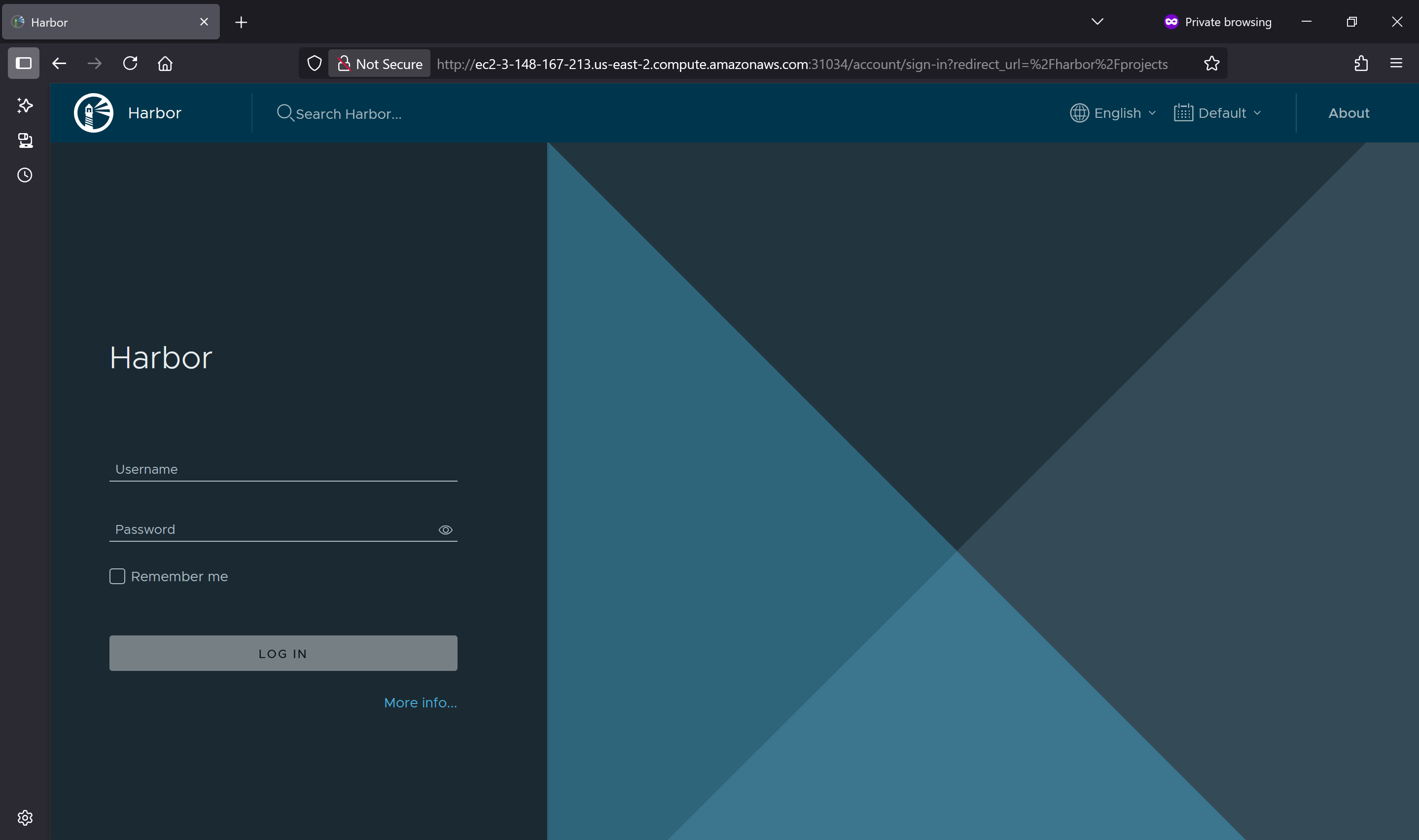
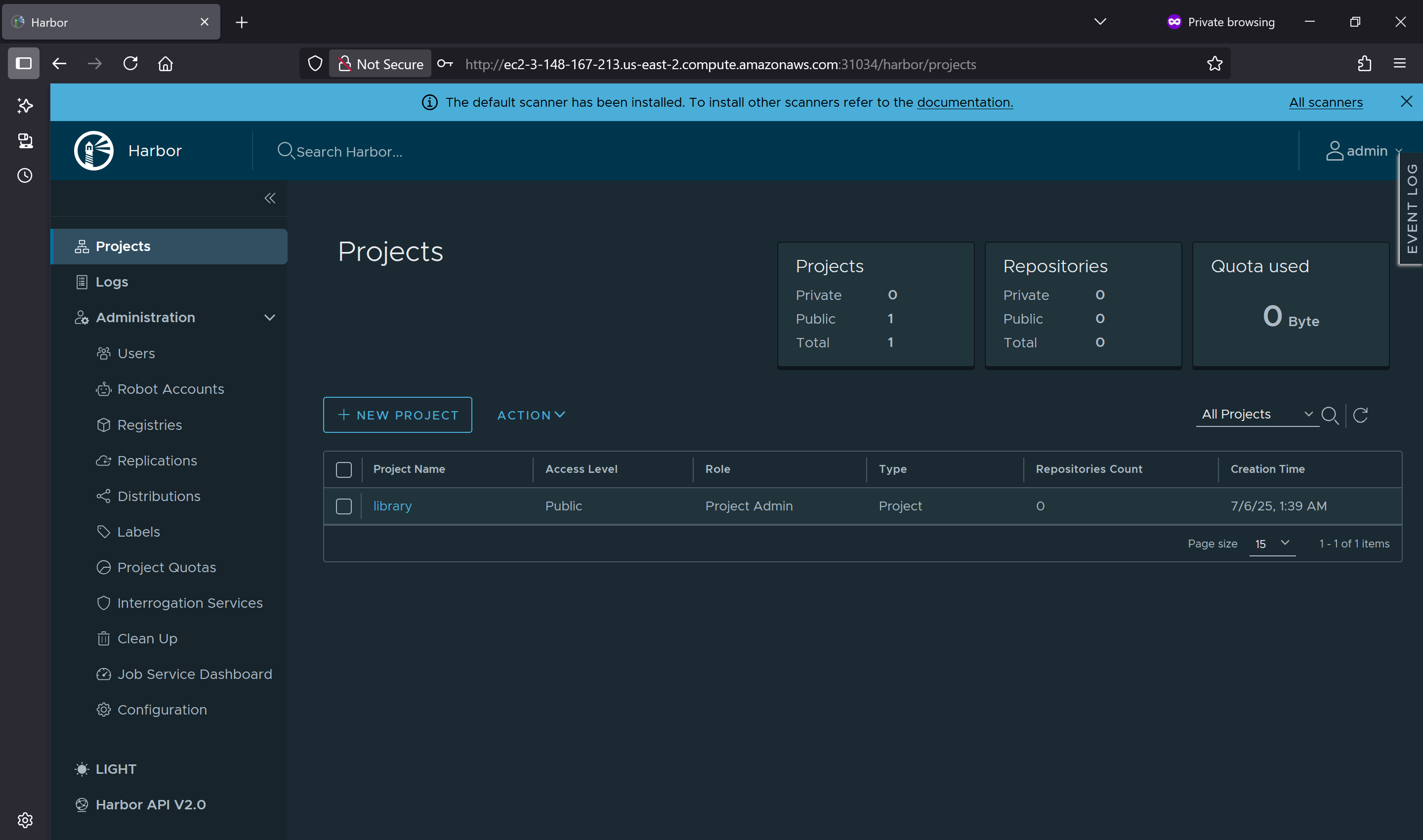
<p>Able to access the console &amp; login</p>

<div style="display: flex; gap: 20px; justify-content: center; flex-wrap: wrap; margin-bottom: 2em;">
  <div style="flex: 1; display: flex; flex-direction: column; align-items: center;">
    <a href="/images/post-3/login.png" class="popup img-link shimmer">
      <img src="/images/post-3/login.png" alt="GitLab Pipeline" style="width: 100%; max-width: 400px; border-radius: 8px;" loading="lazy" />
    </a>
    <p style="margin-top: 0.5em; font-size: 14px;">Harbor Login Page</p>
  </div>

  <div style="flex: 1; display: flex; flex-direction: column; align-items: center;">
    <a href="/images/post-3/console.png" class="popup img-link shimmer">
      <img src="/images/post-3/console.png" alt="DockerHub Tag" style="width: 100%; max-width: 400px; border-radius: 8px;" loading="lazy" />
    </a>
    <p style="margin-top: 0.5em; font-size: 14px;">Harbor Console</p>
  </div>
</div>

<hr />

<h3 id="installing-kyverno">Installing Kyverno</h3>

<p>We are using Kyverno to make sure all images come only from our internal Harbor registry.</p>

<div class="language-bash highlighter-rouge"><div class="highlight"><pre class="highlight"><code><table class="rouge-table"><tbody><tr><td class="rouge-gutter gl"><pre class="lineno">1
2
3
4
5
6
7
8
9
10
11
12
13
14
15
16
17
18
19
</pre></td><td class="rouge-code"><pre><span class="o">[</span>root@ip-172-31-2-14 ~]# helm repo add kyverno https://kyverno.github.io/kyverno/
helm repo update
<span class="s2">"kyverno"</span> has been added to your repositories
Hang tight <span class="k">while </span>we grab the latest from your chart repositories...
...Successfully got an update from the <span class="s2">"ingress-nginx"</span> chart repository
...Successfully got an update from the <span class="s2">"harbor"</span> chart repository
...Successfully got an update from the <span class="s2">"kyverno"</span> chart repository
Update Complete. ⎈Happy Helming!⎈
<span class="o">[</span>root@ip-172-31-2-14 ~]# helm <span class="nb">install </span>kyverno kyverno/kyverno <span class="nt">-n</span> kyverno <span class="nt">--create-namespace</span>
NAME: kyverno
LAST DEPLOYED: Sun Jul  6 07:50:03 2025
NAMESPACE: kyverno
STATUS: deployed
REVISION: 1
NOTES:
Chart version: 3.4.4
Kyverno version: v1.14.4

Thank you <span class="k">for </span>installing kyverno! Your release is named kyverno.
</pre></td></tr></tbody></table></code></pre></div></div>
<hr />

<h3 id="implement-image-restriction-with-kyverno">Implement Image Restriction with Kyverno</h3>

<p>This Kyverno policy <code class="language-plaintext highlighter-rouge">restrict-image-policy.yaml</code> ensures that all containers and initContainers in pods pull images only from our internal Harbor registry, blocking any from external sources.</p>

<div class="language-yaml highlighter-rouge"><div class="highlight"><pre class="highlight"><code><table class="rouge-table"><tbody><tr><td class="rouge-gutter gl"><pre class="lineno">1
2
3
4
5
6
7
8
9
10
11
12
13
14
15
16
17
18
19
20
21
</pre></td><td class="rouge-code"><pre><span class="na">apiVersion</span><span class="pi">:</span> <span class="s">kyverno.io/v1</span>
<span class="na">kind</span><span class="pi">:</span> <span class="s">ClusterPolicy</span>
<span class="na">metadata</span><span class="pi">:</span>
  <span class="na">name</span><span class="pi">:</span> <span class="s">restrict-image-registry</span>
<span class="na">spec</span><span class="pi">:</span>
  <span class="na">validationFailureAction</span><span class="pi">:</span> <span class="s">Enforce</span>
  <span class="na">background</span><span class="pi">:</span> <span class="kc">true</span>
  <span class="na">rules</span><span class="pi">:</span>
    <span class="pi">-</span> <span class="na">name</span><span class="pi">:</span> <span class="s">allow-only-internal-registry</span>
      <span class="na">match</span><span class="pi">:</span>
        <span class="na">resources</span><span class="pi">:</span>
          <span class="na">kinds</span><span class="pi">:</span>
            <span class="pi">-</span> <span class="s">Pod</span>
      <span class="na">validate</span><span class="pi">:</span>
        <span class="na">message</span><span class="pi">:</span> <span class="s2">"</span><span class="s">Only</span><span class="nv"> </span><span class="s">images</span><span class="nv"> </span><span class="s">from</span><span class="nv"> </span><span class="s">Internal</span><span class="nv"> </span><span class="s">Harbor</span><span class="nv"> </span><span class="s">registery</span><span class="nv"> </span><span class="s">are</span><span class="nv"> </span><span class="s">allowed."</span>
        <span class="na">pattern</span><span class="pi">:</span>
          <span class="na">spec</span><span class="pi">:</span>
            <span class="na">containers</span><span class="pi">:</span>
              <span class="pi">-</span> <span class="na">image</span><span class="pi">:</span> <span class="s2">"</span><span class="s">ec2-3-148-167-213.us-east-2.compute.amazonaws.com/*"</span>
            <span class="na">initContainers</span><span class="pi">:</span>
              <span class="pi">-</span> <span class="na">image</span><span class="pi">:</span> <span class="s2">"</span><span class="s">ec2-3-148-167-213.us-east-2.compute.amazonaws.com/*"</span>
</pre></td></tr></tbody></table></code></pre></div></div>

<hr />
<h3 id="push-sample-image-to-internal-harbor-registry">Push Sample Image to Internal Harbor Registry</h3>

<p>To validate now Kubernetes can only pull images from our internal Harbor registry, we’ll build a simple Docker image, tag it properly, and push it to our project <strong>demo</strong> on Harbor registry.</p>

<div class="language-bash highlighter-rouge"><div class="highlight"><pre class="highlight"><code><table class="rouge-table"><tbody><tr><td class="rouge-gutter gl"><pre class="lineno">1
2
3
4
5
6
7
8
9
10
11
12
13
14
15
16
17
18
19
20
21
22
23
24
25
26
27
28
29
30
31
</pre></td><td class="rouge-code"><pre><span class="o">[</span>root@ip-172-31-2-14 ~]# docker login ec2-3-148-167-213.us-east-2.compute.amazonaws.com:31034
Username: admin
Password:
WARNING! Your password will be stored unencrypted <span class="k">in</span> /root/.docker/config.json.
Configure a credential helper to remove this warning. See
https://docs.docker.com/engine/reference/commandline/login/#credentials-store

Login Succeeded
<span class="o">[</span>root@ip-172-31-2-14 ~]# docker pull nginx:latest
latest: Pulling from library/nginx
3da95a905ed5: Pull <span class="nb">complete
</span>6c8e51cf0087: Pull <span class="nb">complete
</span>9bbbd7ee45b7: Pull <span class="nb">complete
</span>48670a58a68f: Pull <span class="nb">complete
</span>ce7132063a56: Pull <span class="nb">complete
</span>23e05839d684: Pull <span class="nb">complete
</span>ee95256df030: Pull <span class="nb">complete
</span>Digest: sha256:93230cd54060f497430c7a120e2347894846a81b6a5dd2110f7362c5423b4abc
Status: Downloaded newer image <span class="k">for </span>nginx:latest
docker.io/library/nginx:latest
<span class="o">[</span>root@ip-172-31-2-14 ~]# docker tag nginx:latest ec2-3-148-167-213.us-east-2.compute.amazonaws.com:31034/demo/nginx:latest
<span class="o">[</span>root@ip-172-31-2-14 ~]# docker push ec2-3-148-167-213.us-east-2.compute.amazonaws.com:31034/demo/nginx:latest
The push refers to repository <span class="o">[</span>ec2-3-148-167-213.us-east-2.compute.amazonaws.com:31034/demo/nginx]
07eaefc6ebf2: Pushed
de2ef8ceb76a: Pushed
e6c40b7bdc83: Pushed
f941308035cf: Pushed
81a9d30670ec: Pushed
1bf33238ab09: Pushed
1bb35e8b4de1: Pushed
latest: digest: sha256:ccde53834eab53e85b35526a647cdb714ea4521b1ddf5a07b5c8787298d13087 size: 1778
</pre></td></tr></tbody></table></code></pre></div></div>
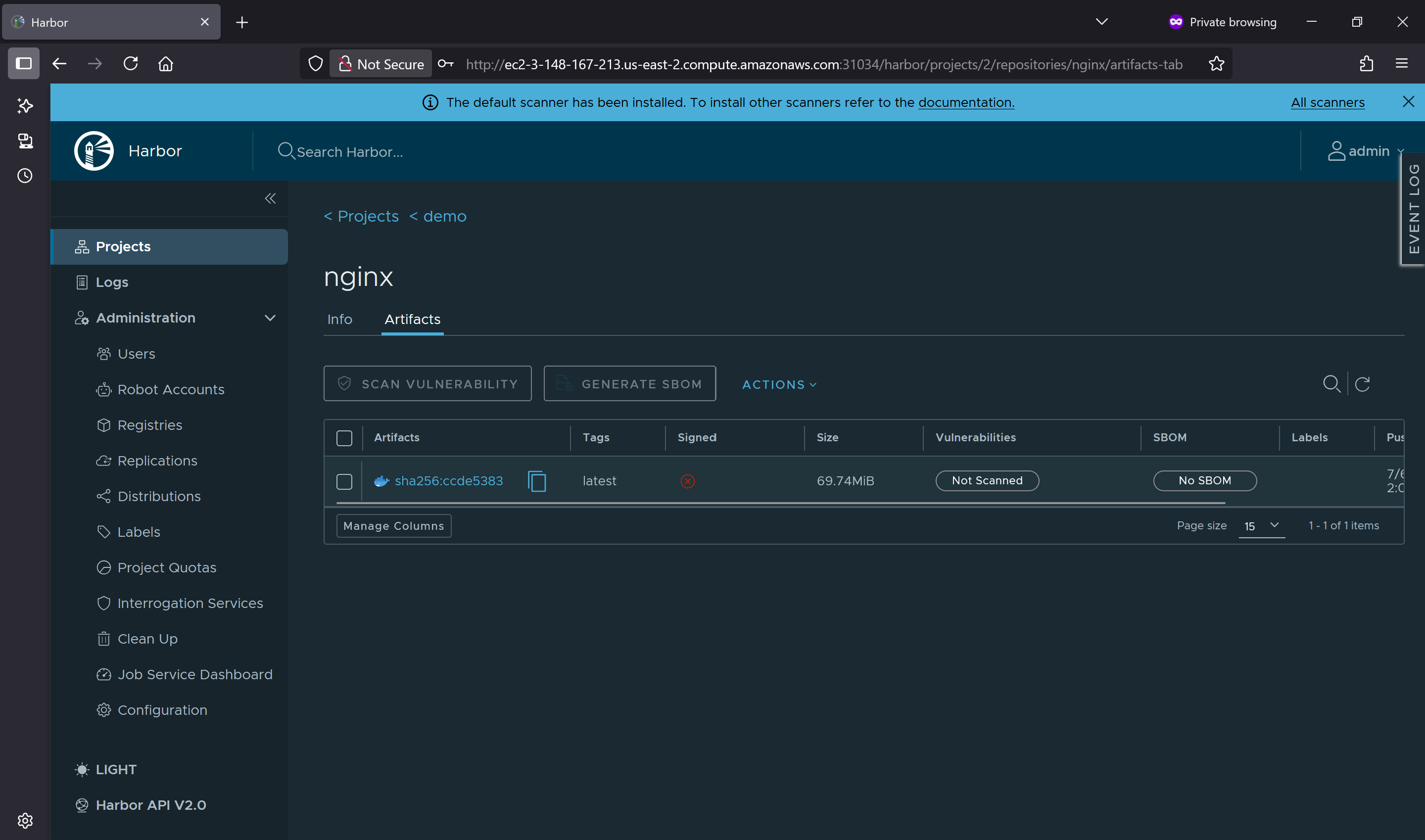
<p>We could see the nginx image is tagged and pushed to our registry.</p>

<div style="width: 100%; display: flex; justify-content: center; margin: 20px 0;">
  <div style="max-width: 1000px; width: 100%;">
    <a href="/images/post-3/image_registery.png" class="popup img-link shimmer">
      <img src="/images/post-3/image_registery.png" alt="Harbor project demo with nginx image" style="width: 100%; height: auto; display: block; border-radius: 8px;" loading="lazy" />
    </a>
    <div style="text-align: center; font-size: 1em; color: gray; margin-top: 8px;">
      <em>Figure: Project demo with latest nginx image</em>
    </div>
  </div>
</div>
<hr />
<h3 id="proving-image-pull-works-only-from-internal-harbor-registry">Proving Image Pull Works Only from Internal Harbor Registry</h3>

<p>To confirm that Kubernetes is restricted to pulling container images only from our internal Harbor registry, we’ll attempt to run a pod using the NGINX image that we previously pushed to Harbor.</p>

<p>We tested our image pull policy by running a pod using the NGINX image hosted on our internal Harbor registry</p>
<div class="language-bash highlighter-rouge"><div class="highlight"><pre class="highlight"><code><table class="rouge-table"><tbody><tr><td class="rouge-gutter gl"><pre class="lineno">1
2
3
</pre></td><td class="rouge-code"><pre><span class="o">[</span>root@ip-172-31-2-14 ~]# kubectl run nginx-harbor <span class="se">\</span>
  <span class="nt">--image</span><span class="o">=</span>ec2-3-148-167-213.us-east-2.compute.amazonaws.com:31034/demo/nginx:latest
pod/nginx-harbor created
</pre></td></tr></tbody></table></code></pre></div></div>

<p>To verify the enforcement, we attempted to run a pod using the default NGINX image from the public Docker registry</p>
<div class="language-bash highlighter-rouge"><div class="highlight"><pre class="highlight"><code><table class="rouge-table"><tbody><tr><td class="rouge-gutter gl"><pre class="lineno">1
2
3
4
5
6
7
8
</pre></td><td class="rouge-code"><pre><span class="o">[</span>root@ip-172-31-2-14 ~]# k run nginx-normal <span class="nt">--image</span><span class="o">=</span>nginx:latest
Error from server: admission webhook <span class="s2">"validate.kyverno.svc-fail"</span> denied the request:

resource Pod/default/nginx-normal was blocked due to the following policies

restrict-image-registry:
  allow-only-internal-registry: <span class="s1">'validation error: Only images from Internal Harbor registery 
    are allowed. rule allow-only-internal-registry failed at path /spec/containers/0/image/'</span>
</pre></td></tr></tbody></table></code></pre></div></div>

<p>This pod failed to launch. Kyverno blocked the request and returned a validation error</p>

<p style="color: darkred;"><strong>Only images from Internal Harbor registery are allowed.</strong></p>

<p>Using Kyverno and Harbor, we successfully enforced image pull restrictions to allow only trusted images from our internal registry, helping prevent random or unauthorized installations in the cluster.</p>]]></content><author><name></name></author><category term="Kubernetes" /><category term="Security" /><category term="CNCF" /><category term="harbor" /><category term="kyverno" /><category term="container-security" /><category term="private-registry" /><summary type="html"><![CDATA[When deploying workloads to Kubernetes, it’s critical to control which container images are allowed into the environment. Pulling images from public or unverified registries introduces security risks such as unscanned vulnerabilities or untrusted third-party code.]]></summary><media:thumbnail xmlns:media="http://search.yahoo.com/mrss/" url="https://vamsi193.github.io/images/post-3/banner-post-3.png" /><media:content medium="image" url="https://vamsi193.github.io/images/post-3/banner-post-3.png" xmlns:media="http://search.yahoo.com/mrss/" /></entry><entry><title type="html">Create a Kubernetes Cluster on windows for FREE</title><link href="https://vamsi193.github.io/posts/create-free-kubernetes-cluster/" rel="alternate" type="text/html" title="Create a Kubernetes Cluster on windows for FREE" /><published>2025-06-29T22:05:00-06:00</published><updated>2025-06-29T22:05:00-06:00</updated><id>https://vamsi193.github.io/posts/create-free-kubernetes-cluster</id><content type="html" xml:base="https://vamsi193.github.io/posts/create-free-kubernetes-cluster/"><![CDATA[<p>If you’re just getting started with Kubernetes and want a simple way to experiment locally, KinD is a great option.<br />
KinD stands for Kubernetes in Docker, and it lets you run a Kubernetes cluster right on your laptop using Docker containers.</p>

<p>This guide explains how to set up a <span style="color: #BF360C;"><strong>KinD cluster on a Windows laptop</strong></span>, for free.</p>

<hr />
<h2 id="why-use-kind">Why Use KinD</h2>

<ul>
  <li>Runs entirely on your local machine</li>
  <li>Uses Docker to simulate Kubernetes nodes</li>
  <li>Great for learning and testing</li>
</ul>

<h2 id="prerequisites">Prerequisites</h2>

<p>To set this up, I already had:</p>

<ol>
  <li>Download and install Docker Desktop: <a href="https://www.docker.com/products/docker-desktop">docker-desktop</a></li>
  <li>Terminal to access cluster: <a href="https://git-scm.com/downloads">Git Bash</a></li>
  <li>Kubernetes CLI: <a href="https://kubernetes.io/docs/tasks/tools/">kubectl</a></li>
  <li>HELM: <a href="https://helm.sh/docs/intro/install/">HELM</a></li>
</ol>

<h3 id="setting-up-kind-cli-in-git-bash-on-windows">Setting Up KinD CLI in Git Bash on Windows</h3>

<p><strong>Step 1:</strong> Download kind binaries <code class="language-plaintext highlighter-rouge">kind-windows-amd64.exe</code>
 <a href="https://github.com/kubernetes-sigs/kind/releases">KinD</a></p>

<p><strong>Step 2:</strong> Rename the file to <code class="language-plaintext highlighter-rouge">kind.exe</code></p>

<div class="language-bash highlighter-rouge"><div class="highlight"><pre class="highlight"><code><table class="rouge-table"><tbody><tr><td class="rouge-gutter gl"><pre class="lineno">1
</pre></td><td class="rouge-code"><pre><span class="nb">mv</span> ~/Downloads/kind-windows-amd64.exe ~/Downloads/kind.exe
</pre></td></tr></tbody></table></code></pre></div></div>

<p><strong>Step 3:</strong> Create a folder and move <code class="language-plaintext highlighter-rouge">kind.exe</code> binary to <code class="language-plaintext highlighter-rouge">C:\kind</code></p>

<div class="language-bash highlighter-rouge"><div class="highlight"><pre class="highlight"><code><table class="rouge-table"><tbody><tr><td class="rouge-gutter gl"><pre class="lineno">1
2
</pre></td><td class="rouge-code"><pre><span class="nb">mkdir</span> <span class="nt">-p</span> /c/kind
<span class="nb">mv</span> ~/Downloads/kind.exe /c/kind/
</pre></td></tr></tbody></table></code></pre></div></div>

<p><strong>Step 4:</strong> Add <code class="language-plaintext highlighter-rouge">C:\kind</code> to the Windows system PATH</p>

<ul>
  <li>Open <span style="color: #4CAF50;"><strong>Start Menu</strong></span> → search “Environment Variables”</li>
  <li>Click <span style="color: #4CAF50;"><strong>Environment Variables</strong></span></li>
  <li>Under <span style="color: #4CAF50;"><strong>System Variables</strong></span>, find and select <code class="language-plaintext highlighter-rouge">Path</code> → click <span style="color: #4CAF50;"><strong>Edit</strong></span></li>
  <li>Click <span style="color: #4CAF50;"><strong>New</strong></span> and add <code class="language-plaintext highlighter-rouge">C:\kind</code></li>
  <li>Click <span style="color: #4CAF50;"><strong>OK</strong></span> to save</li>
</ul>

<p><strong>Step 5:</strong> Verify the installation</p>

<p>Close and reopen Git Bash, then run:</p>

<div class="language-bash highlighter-rouge"><div class="highlight"><pre class="highlight"><code><table class="rouge-table"><tbody><tr><td class="rouge-gutter gl"><pre class="lineno">1
2
3
</pre></td><td class="rouge-code"><pre>kind version

kind v0.22.0 go1.22.2 windows/amd64
</pre></td></tr></tbody></table></code></pre></div></div>

<p>This confirms <code class="language-plaintext highlighter-rouge">kind</code> is installed and ready to use.</p>

<hr />

<h2 id="create-a-cluster">Create a Cluster</h2>

<p><strong>Step 1:</strong> Create the Kind Config File <code class="language-plaintext highlighter-rouge">kind-cluster-config.yaml</code></p>

<p><span style="color: #9C27B0;"><code>extraPortMappings</code></span> helps to expose your applications locally. This ensures port 31034 from the Kind container maps to your Windows localhost. You can add any number of ports and create cluster.</p>

<div class="language-yaml highlighter-rouge"><div class="highlight"><pre class="highlight"><code><table class="rouge-table"><tbody><tr><td class="rouge-gutter gl"><pre class="lineno">1
2
3
4
5
6
7
8
9
10
</pre></td><td class="rouge-code"><pre><span class="na">kind</span><span class="pi">:</span> <span class="s">Cluster</span>
<span class="na">apiVersion</span><span class="pi">:</span> <span class="s">kind.x-k8s.io/v1alpha4</span>
<span class="na">nodes</span><span class="pi">:</span>
  <span class="pi">-</span> <span class="na">role</span><span class="pi">:</span> <span class="s">control-plane</span>
    <span class="na">extraPortMappings</span><span class="pi">:</span>
      <span class="pi">-</span> <span class="na">containerPort</span><span class="pi">:</span> <span class="m">31034</span>
        <span class="na">hostPort</span><span class="pi">:</span> <span class="m">31034</span>
        <span class="na">protocol</span><span class="pi">:</span> <span class="s">TCP</span>
  <span class="pi">-</span> <span class="na">role</span><span class="pi">:</span> <span class="s">worker</span>
  <span class="pi">-</span> <span class="na">role</span><span class="pi">:</span> <span class="s">worker</span>
</pre></td></tr></tbody></table></code></pre></div></div>

<p><strong>Step 2:</strong> Create the Cluster. Open your terminal and run command</p>

<div class="language-bash highlighter-rouge"><div class="highlight"><pre class="highlight"><code><table class="rouge-table"><tbody><tr><td class="rouge-gutter gl"><pre class="lineno">1
</pre></td><td class="rouge-code"><pre>kind create cluster <span class="nt">--name</span> my-cluster <span class="nt">--config</span> kind-cluster-config.yaml
</pre></td></tr></tbody></table></code></pre></div></div>
<p><strong>Step 3:</strong> Verify the Cluster Once the cluster is created, verify the nodes with</p>

<div class="language-bash highlighter-rouge"><div class="highlight"><pre class="highlight"><code><table class="rouge-table"><tbody><tr><td class="rouge-gutter gl"><pre class="lineno">1
2
3
4
5
6
7
8
9
10
11
12
13
</pre></td><td class="rouge-code"><pre><span class="o">[</span>git@vamsi194 ~]# kind create cluster <span class="nt">--name</span> my-cluster <span class="nt">--config</span> kind-cluster.yaml
Creating cluster <span class="s2">"my-cluster"</span> ...
 ✓ Ensuring node image <span class="o">(</span>kindest/node:v1.29.2<span class="o">)</span> 🖼
 ✓ Preparing nodes 📦 📦 📦
 ✓ Writing configuration 📜
 ✓ Starting control-plane 🕹️
 ✓ Installing CNI 🔌
 ✓ Installing StorageClass 💾
 ✓ Joining worker nodes 🚜
Set kubectl context to <span class="s2">"kind-my-cluster"</span>
You can now use your cluster with:

kubectl cluster-info <span class="nt">--context</span> kind-my-cluster
</pre></td></tr></tbody></table></code></pre></div></div>

<p><strong>Step 4:</strong> Verify the cluster</p>
<div class="language-bash highlighter-rouge"><div class="highlight"><pre class="highlight"><code><table class="rouge-table"><tbody><tr><td class="rouge-gutter gl"><pre class="lineno">1
2
3
4
5
</pre></td><td class="rouge-code"><pre><span class="o">[</span>git@vamsi194 ~]# kubectl get nodes
NAME                       STATUS   ROLES           AGE     VERSION
my-cluster-control-plane   Ready    control-plane   2m38s   v1.29.2
my-cluster-worker          Ready    &lt;none&gt;          2m17s   v1.29.2
my-cluster-worker2         Ready    &lt;none&gt;          2m14s   v1.29.2
</pre></td></tr></tbody></table></code></pre></div></div>

<h2 id="exposing-application-service-locally">Exposing application service locally</h2>

<p>I’m installing grafana application via HELM to verify the process</p>

<div class="language-bash highlighter-rouge"><div class="highlight"><pre class="highlight"><code><table class="rouge-table"><tbody><tr><td class="rouge-gutter gl"><pre class="lineno">1
2
3
4
5
6
7
8
</pre></td><td class="rouge-code"><pre><span class="o">[</span>git@vamsi194 ~]# helm repo add grafana https://grafana.github.io/helm-charts
<span class="s2">"grafana"</span> has been added to your repositories


<span class="o">[</span>git@vamsi194 ~]# helm repo update
Hang tight <span class="k">while </span>we grab the latest from your chart repositories...
...Successfully got an update from the <span class="s2">"grafana"</span> chart repository
Update Complete. ⎈Happy Helming!⎈
</pre></td></tr></tbody></table></code></pre></div></div>

<p>Creating Custom Values <code class="language-plaintext highlighter-rouge">grafana-values.yaml</code> for accessing the service on specific port 31034</p>

<div class="language-yaml highlighter-rouge"><div class="highlight"><pre class="highlight"><code><table class="rouge-table"><tbody><tr><td class="rouge-gutter gl"><pre class="lineno">1
2
3
4
5
6
7
8
</pre></td><td class="rouge-code"><pre><span class="na">service</span><span class="pi">:</span>
  <span class="na">type</span><span class="pi">:</span> <span class="s">NodePort</span>
  <span class="na">port</span><span class="pi">:</span> <span class="m">80</span>
  <span class="na">targetPort</span><span class="pi">:</span> <span class="m">3000</span>
  <span class="na">nodePort</span><span class="pi">:</span> <span class="m">31034</span>

<span class="na">adminUser</span><span class="pi">:</span> <span class="s">admin</span>
<span class="na">adminPassword</span><span class="pi">:</span> <span class="s">admin</span>
</pre></td></tr></tbody></table></code></pre></div></div>

<p>Installing and verifying the service status on the cluster</p>

<div class="language-bash highlighter-rouge"><div class="highlight"><pre class="highlight"><code><table class="rouge-table"><tbody><tr><td class="rouge-gutter gl"><pre class="lineno">1
2
3
4
5
6
7
8
9
10
11
12
13
14
15
</pre></td><td class="rouge-code"><pre><span class="o">[</span>git@vamsi194 ~]# helm <span class="nb">install </span>grafana grafana/grafana <span class="nt">-f</span> grafana-values.yaml
NAME: grafana
LAST DEPLOYED: Thu Jul  3 20:12:44 2025
NAMESPACE: default
STATUS: deployed
REVISION: 1

<span class="o">[</span>git@vamsi194 ~]# kubectl get pods
NAME                       READY   STATUS    RESTARTS   AGE
grafana-78b7855d8b-f4ktn   1/1     Running   0          42s

<span class="o">[</span>git@vamsi194 ~]# kubectl get svc
NAME         TYPE        CLUSTER-IP     EXTERNAL-IP   PORT<span class="o">(</span>S<span class="o">)</span>        AGE
grafana      NodePort    10.96.65.126   &lt;none&gt;        80:31034/TCP   46s
kubernetes   ClusterIP   10.96.0.1      &lt;none&gt;        443/TCP        22m
</pre></td></tr></tbody></table></code></pre></div></div>

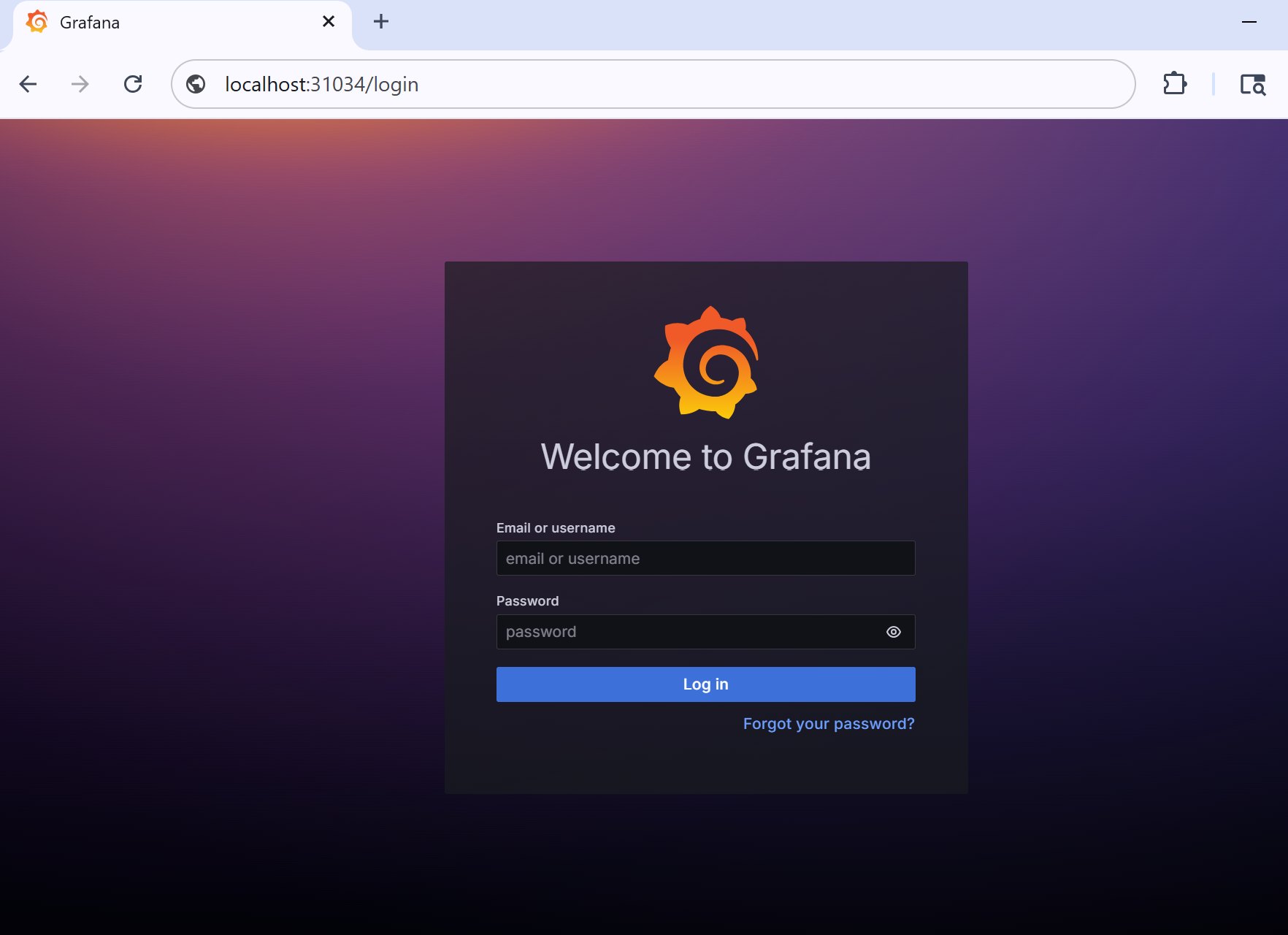
<p>Access the service locally through browser..</p>
<div style="display: flex; justify-content: center; margin: 10px 0;">
  <!-- Left Section: Image + Caption -->
  <div style="flex: 1; display: flex; flex-direction: column; align-items: center;">
    <a href="/images/post-2/grafana-post2.png" class="popup img-link shimmer">
      <img src="/images/post-2/grafana-post2.png" alt="GitLab CI/CD flow for Docker releases" style="width: 100%; max-width: 600px; border-radius: 8px;" loading="lazy" />
    </a>
    <div style="text-align: center; font-size: 0.9em; color: gray; margin-top: 8px;">
      <em>Figure: Locally accessed grafana application</em>
    </div>
  </div>

  <!-- Right Section: Empty -->
  <div style="flex: 1;"></div>
</div>]]></content><author><name></name></author><category term="DevOps" /><category term="Kubernetes" /><category term="KinD" /><category term="helm" /><category term="kubernetes" /><category term="grafana" /><summary type="html"><![CDATA[If you’re just getting started with Kubernetes and want a simple way to experiment locally, KinD is a great option. KinD stands for Kubernetes in Docker, and it lets you run a Kubernetes cluster right on your laptop using Docker containers.]]></summary><media:thumbnail xmlns:media="http://search.yahoo.com/mrss/" url="https://vamsi193.github.io/images/post-2/banner-logo.png" /><media:content medium="image" url="https://vamsi193.github.io/images/post-2/banner-logo.png" xmlns:media="http://search.yahoo.com/mrss/" /></entry><entry><title type="html">CI/CD Pipeline for Versioned Docker Releases Using GitLab</title><link href="https://vamsi193.github.io/posts/cicd-pipeline-for-versioned-docker-releases-using-gitlab/" rel="alternate" type="text/html" title="CI/CD Pipeline for Versioned Docker Releases Using GitLab" /><published>2025-03-26T22:00:00-06:00</published><updated>2025-03-26T22:00:00-06:00</updated><id>https://vamsi193.github.io/posts/cicd-pipeline-for-versioned-docker-releases-using-gitlab</id><content type="html" xml:base="https://vamsi193.github.io/posts/cicd-pipeline-for-versioned-docker-releases-using-gitlab/"><![CDATA[<p>To make deployments easier and more reliable, I have created a GitLab CI/CD pipeline.</p>

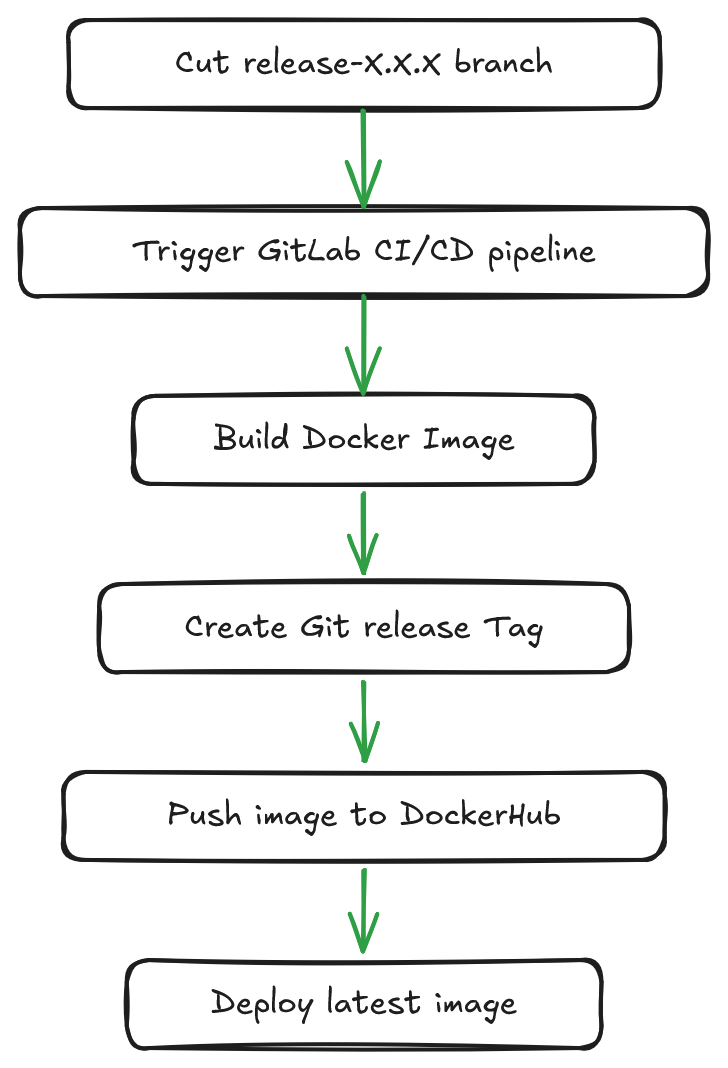
<p>Whenever I push code to a <code class="language-plaintext highlighter-rouge">release-X.X.X</code> branch, GitLab automatically builds a Docker image with the updated <code class="language-plaintext highlighter-rouge">index.html</code>, tags the repository, and pushes the image to DockerHub. A manual deployment job is also available, giving me full control over when to release the image.</p>

<div style="display: flex; justify-content: center; margin: 20px 0;">
  <div style="flex: 1;"></div>
  <div style="flex: 1; display: flex; flex-direction: column; align-items: center;">
    <a href="/images/post-1/flow-chart.png" class="popup img-link shimmer">
      <img src="/images/post-1/flow-chart.png" alt="GitLab CI/CD flow for Docker releases" style="width: 100%; max-width: 500px; border-radius: 8px;" loading="lazy" />
    </a>
  </div>
  <div style="flex: 1;"></div>
</div>

<div style="text-align: center; font-size: 0.9em; color: gray; margin-top: -20px;">
  <em>Figure: GitLab CI/CD flow for versioned Docker releases</em>
</div>

<hr />

<h3 id="prerequisites">Prerequisites</h3>

<p>To set this up, I already had:</p>

<ul>
  <li>An EC2 instance with Docker installed and accessible via SSH</li>
  <li>A GitLab repository for storing the <code class="language-plaintext highlighter-rouge">.gitlab-ci.yml</code> file</li>
  <li>A DockerHub account with credentials ready</li>
</ul>

<hr />

<h3 id="pipeline-configuration">Pipeline Configuration</h3>

<p style="margin-bottom: 0.5em; font-weight: bold;">.gitlab-ci.yml</p>

<div style="max-height: 400px; overflow-y: auto; background: #000000; color: #00B200; padding: 1em; border-radius: 6px; font-size: 14px;">
<pre><code class="language-yaml">
stages:
  - build
  - tag
  - deploy

variables:
  DOCKER_IMAGE: vamsi193/release-cicd

workflow:
  rules:
    - if: '$CI_COMMIT_REF_NAME =~ /^release-\d+\.\d+\.\d+$/'
      when: always
    - when: never

build_image:
  stage: build
  tags:
    - my-runner
  script:
    - echo "$DOCKERHUB_PASSWORD" | docker login -u "$DOCKERHUB_USERNAME" --password-stdin
    - TAG_NAME="${CI_COMMIT_REF_NAME#release-}"
    - echo "TAG_NAME=$TAG_NAME" &gt; tag.env
    - docker build -t $DOCKER_IMAGE:$TAG_NAME .
    - docker push $DOCKER_IMAGE:$TAG_NAME
  artifacts:
    reports:
      dotenv: tag.env

tag_repo:
  stage: tag
  tags:
    - my-runner
  dependencies:
    - build_image
  script:
    - git tag v$TAG_NAME
    - git push https://oauth2:${CI_GITLAB_PAT}@gitlab.com/vamsi193/release-cicd.git v$TAG_NAME

manual_deploy:
  stage: deploy
  tags:
    - my-runner
  script:
    - echo "Stopping existing container if it exists..."
    - docker stop release-app || true
    - docker rm release-app || true
    - docker run -d --name release-app -p 80:80 $DOCKER_IMAGE:$TAG_NAME
  when: manual
</code></pre>
</div>

<hr />

<h3 id="workflow-logic">Workflow Logic</h3>

<p>The <code class="language-plaintext highlighter-rouge">workflow</code> block ensures the pipeline runs <strong>only</strong> when the branch name follows the <code class="language-plaintext highlighter-rouge">release-X.X.X</code> format:</p>

<div class="language-yaml highlighter-rouge"><div class="highlight"><pre class="highlight"><code><table class="rouge-table"><tbody><tr><td class="rouge-gutter gl"><pre class="lineno">1
2
3
4
5
</pre></td><td class="rouge-code"><pre><span class="na">workflow</span><span class="pi">:</span>
  <span class="na">rules</span><span class="pi">:</span>
    <span class="pi">-</span> <span class="na">if</span><span class="pi">:</span> <span class="s1">'</span><span class="s">$CI_COMMIT_REF_NAME</span><span class="nv"> </span><span class="s">=~</span><span class="nv"> </span><span class="s">/^release-\d+\.\d+\.\d+$/'</span>
      <span class="na">when</span><span class="pi">:</span> <span class="s">always</span>
    <span class="pi">-</span> <span class="na">when</span><span class="pi">:</span> <span class="s">never</span>
</pre></td></tr></tbody></table></code></pre></div></div>

<hr />

<h3 id="stage-breakdown">Stage Breakdown</h3>

<ul>
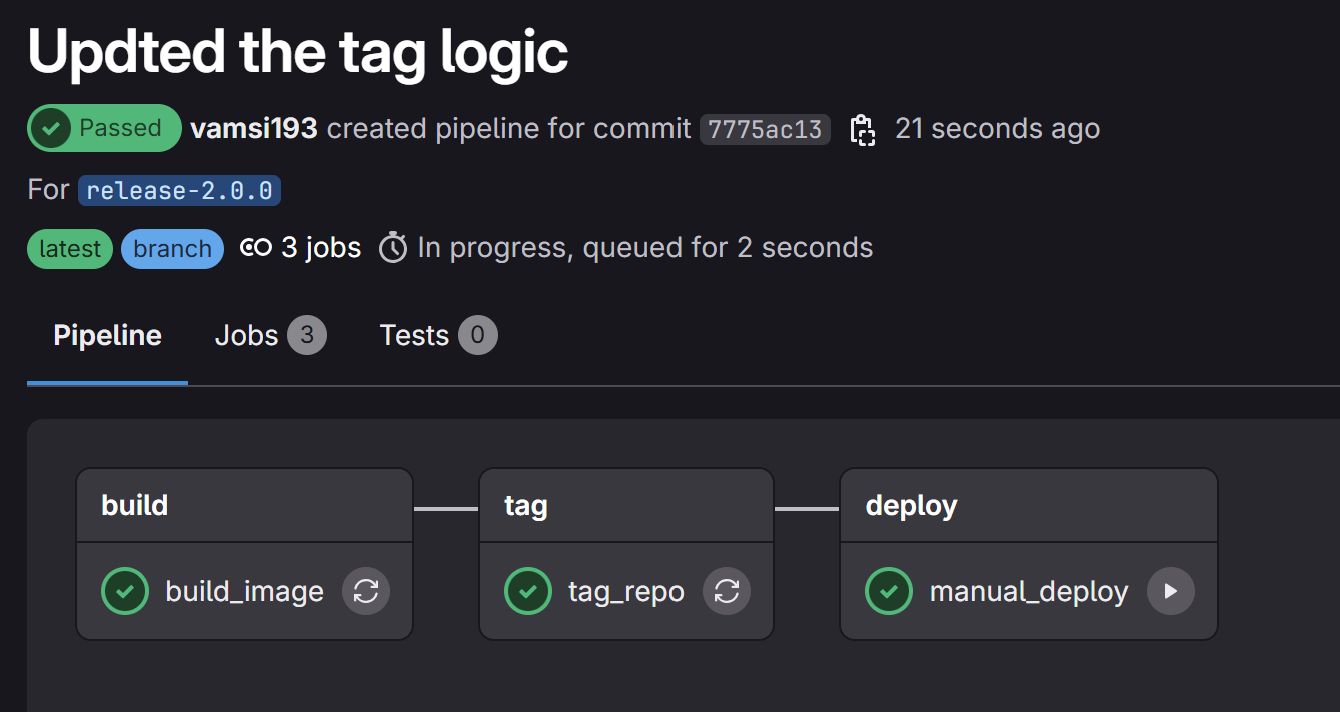
  <li><strong><code class="language-plaintext highlighter-rouge">build_image</code></strong>: Builds the Docker image, tags it with the version, and pushes it to DockerHub.</li>
  <li><strong><code class="language-plaintext highlighter-rouge">tag_repo</code></strong>: Automatically tags the Git repository with <code class="language-plaintext highlighter-rouge">vX.X.X</code>.</li>
  <li><strong><code class="language-plaintext highlighter-rouge">manual_deploy</code></strong>: Lets me deploy the container manually when I’m ready — no automatic production deploys.</li>
</ul>

<hr />

<div style="display: flex; gap: 20px; justify-content: center; flex-wrap: wrap; margin-bottom: 2em;">
  <div style="flex: 1; display: flex; flex-direction: column; align-items: center;">
    <a href="/images/post-1/gitlab-image.png" class="popup img-link shimmer">
      <img src="/images/post-1/gitlab-image.png" alt="GitLab Pipeline" style="width: 100%; max-width: 400px; border-radius: 8px;" loading="lazy" />
    </a>
    <p style="margin-top: 0.5em; font-size: 14px;">GitLab Pipeline Status</p>
  </div>

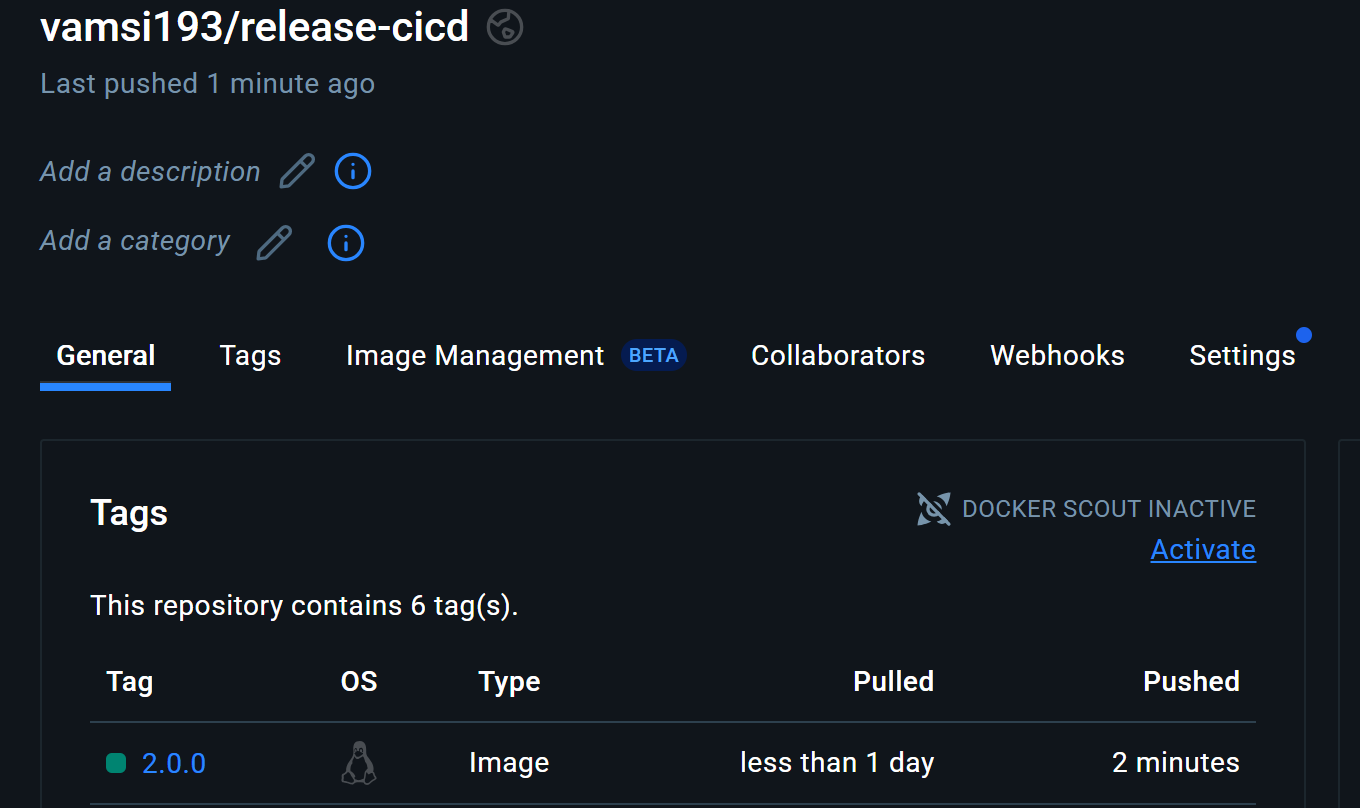
  <div style="flex: 1; display: flex; flex-direction: column; align-items: center;">
    <a href="/images/post-1/dockerhub.png" class="popup img-link shimmer">
      <img src="/images/post-1/dockerhub.png" alt="DockerHub Tag" style="width: 100%; max-width: 400px; border-radius: 8px;" loading="lazy" />
    </a>
    <p style="margin-top: 0.5em; font-size: 14px;">DockerHub images with tag</p>
  </div>
</div>

<hr />

<h3 id="insights-from-this-pipeline">Insights from this Pipeline</h3>

<ul>
  <li>
    <p>Built and pushed Docker images when a release tag is created  <a href="https://hub.docker.com/r/vamsi193/release-cicd/tags">DockerHub</a></p>
  </li>
  <li>
    <p>Tagged the Git repository with the version <a href="https://gitlab.com/vamsi193/release-cicd">GitLab Repository</a></p>
  </li>
  <li>
    <p>Deployed the image manually in a safe and controlled way <a href="https://gitlab.com/vamsi193/release-cicd/-/pipelines/1895260863">Pipeline View</a></p>
  </li>
</ul>

<hr />]]></content><author><name></name></author><category term="DevOps" /><category term="GitLab" /><category term="Docker" /><category term="gitlab" /><category term="docker" /><category term="git" /><category term="cut-release" /><summary type="html"><![CDATA[To make deployments easier and more reliable, I have created a GitLab CI/CD pipeline.]]></summary><media:thumbnail xmlns:media="http://search.yahoo.com/mrss/" url="https://vamsi193.github.io/images/post-1/docker-build-push-gitlab-ci.png" /><media:content medium="image" url="https://vamsi193.github.io/images/post-1/docker-build-push-gitlab-ci.png" xmlns:media="http://search.yahoo.com/mrss/" /></entry></feed>